 wsrx tracker Installation
wsrx tracker for Windows
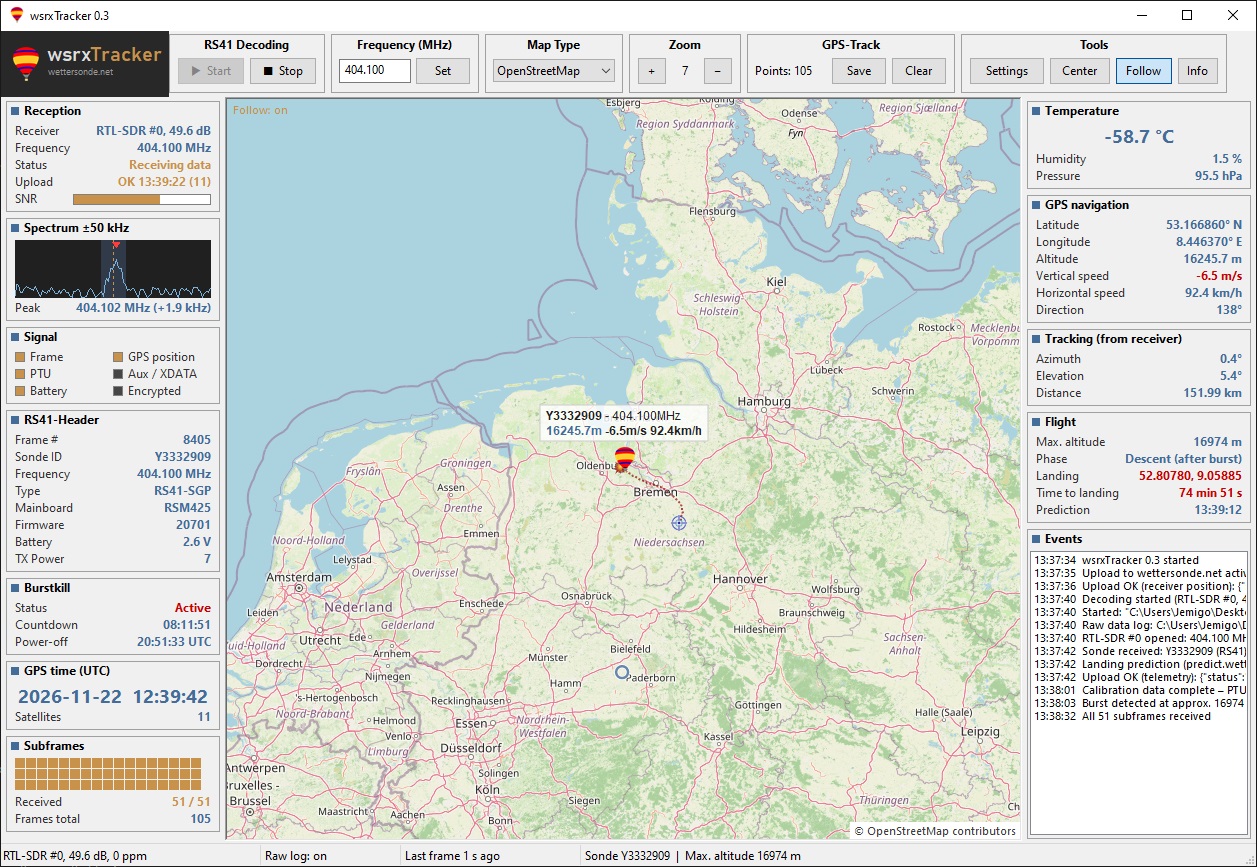
wsrx tracker is a Windows program for receiving Vaisala RS41 radiosondes with an RTL-SDR stick.
It decodes the sonde, shows it on a map together with the flight path, the sensor data and the landing prediction,
and uploads the telemetry and your receiver position to wettersonde.net automatically.
The decoder is rs41mod from wsrx (based on the decoders by rs1729), which also reads the TX power of the sonde.
The user interface of wsrx tracker is inspired by the well-known Windows program RS41Tracker. wsrx tracker is an independent development and is not affiliated with RS41Tracker or its author.
Table of Contents
Hardware required :
- A Windows PC (Windows 10 or 11, 64 bit)
- An RTL-SDR stick, e.g. RTL-SDR Blog V3 or V4 (other RTL2832U sticks work as well)
- An antenna for 400 - 406 MHz (a simple ground plane for 70 cm is fine)
- Optional: a LNA / filter for 403 MHz, which can be powered by the bias-T of the stick
Requirements
- An internet connection (map tiles, upload to wettersonde.net, landing prediction)
- The Microsoft Visual C++ Redistributable 2015-2022 (x64). It is already installed on most PCs.
If it is missing, download vc_redist.x64.exe from Microsoft and install it.
- A callsign or station name for wettersonde.net (see Configuring wsrx tracker)
- The position of your receiver (latitude, longitude, altitude)
Download
Download wsrxTracker.zip and extract it to a folder of your choice,
e.g. C:\wsrxTracker. No installation is necessary.:
wsrxTracker.exe     the program
rs41mod.exe         RS41 decoder (wsrx version)
rtlsdr.dll          RTL-SDR driver library (RTL-SDR Blog, 64 bit, contains libusb)
rtl_test.exe        test tool for the RTL-SDR
The settings are stored in wsrxtracker.ini, map tiles in tiles and the raw data logs in logs.
Installing the RTL-SDR driver
Windows needs the WinUSB driver for the RTL-SDR. If you already use the stick with SDR# or SDR++, the driver is already installed and you can skip this step.
- Plug in the RTL-SDR stick.
- Download Zadig and start it.
- Select Options → List All Devices.
- Select Bulk-In, Interface (Interface 0) in the list (on some systems the entry is called RTL2838UHIDIR or similar).
- Select WinUSB as driver and click Replace Driver (or Install Driver).
Warning: do not install the driver for any other device in the list.
Testing the RTL-SDR
Open a command prompt in the folder bin (in Explorer: type cmd into the address bar and press Enter) and start:
rtl_test.exe
If the output shows Found 1 device(s), the driver and the DLL work. Stop the test with Ctrl+C.
- No supported devices found: the WinUSB driver is missing, see above.
- An error about VCRUNTIME140.dll: install the Visual C++ Redistributable (vc_redist.x64.exe).
- usb_claim_interface error: the stick is used by another program (SDR#, rtl_tcp ...). Close it first.
Start wsrxTracker.exe and click Settings in the toolbar.
RTL-SDR
- Device: select your stick. If there is more than one, the serial number helps to tell them apart.
- Correction (ppm): frequency correction of your stick. Start with 0 and adjust it later (see Receiving a radiosonde). RTL-SDR Blog sticks with TCXO usually need 0 or 1.
- Gain (dB):
auto or a value in dB, e.g. 40. The nearest gain step of the tuner is used.
- Bias-T: only switch it on if a LNA is powered through the antenna cable.
Receiver position
- Latitude and longitude in decimal degrees (e.g.
51.81071 / 8.42936) and the altitude in metres.
- The receiver position is required for the upload to wettersonde.net and for azimuth, elevation and distance to the sonde.
wettersonde.net
- Callsign: up to 12 characters, letters (A-Z) and digits (0-9) only, no spaces or special characters.
It does not have to be an amateur radio callsign, a station name like
Rietberg01 is fine as well.
- The upload to wettersonde.net is always active. Without callsign and receiver position nothing is uploaded.
Receiving a radiosonde
- Enter the frequency of the sonde in the toolbar under Frequency (MHz), e.g.
402.700, and click Set.
You find the frequencies of the sondes in your area on the live map.
- Click Start. The status in the box Reception changes to Receiving data as soon as frames are decoded.
- The Spectrum shows ±50 kHz around the frequency. The red marker shows the strongest carrier and the line Peak its offset.
If the offset is more than about 3 kHz, adjust the ppm correction in the settings.
- The Subframes box shows which of the 51 calibration subframes have been received. Temperature and humidity are shown when all are complete (about one minute).
- The map follows the sonde. Drag the map to move it, use the mouse wheel to zoom and double-click to center on the sonde again.
With Save in the box GPS-Track the flight path can be saved as KML (Google Earth) or CSV.
Upload to wettersonde.net
wsrx tracker uploads to wettersonde.net automatically via the API. The line Upload in the box Reception shows the status.
- Frames are only uploaded if the sonde has a position and more than 4 satellites.
- Above 2000 m a frame is uploaded every 10 seconds, below 2000 m every 2 seconds.
- The receiver position is uploaded at start and then every 10 minutes.
Troubleshooting
- rtlsdr.dll could not be loaded: the message tells the reason. Usually a
libusb-1.0.dll with the wrong bit version is in the folder (delete it, the included rtlsdr.dll does not need it) or the Visual C++ Redistributable is missing.
- No RTL-SDR found: check the USB connection and the WinUSB driver (see Installing the RTL-SDR driver).
- Active, no signal: check the frequency, the antenna and the gain. Look at the spectrum to see if there is a carrier near the frequency.
- Upload: callsign missing / receiver position missing: enter both in the settings.
- All messages of the program are shown in the box Events on the right.
© wettersonde.net - Jean-Michael (DO2JMG) - 2026
 Home
 Livemap
 Statistics
 Search
 Tools
 Info
 About